3 Product Updates: Tour Files, Guide Groups, Cancellation Rules
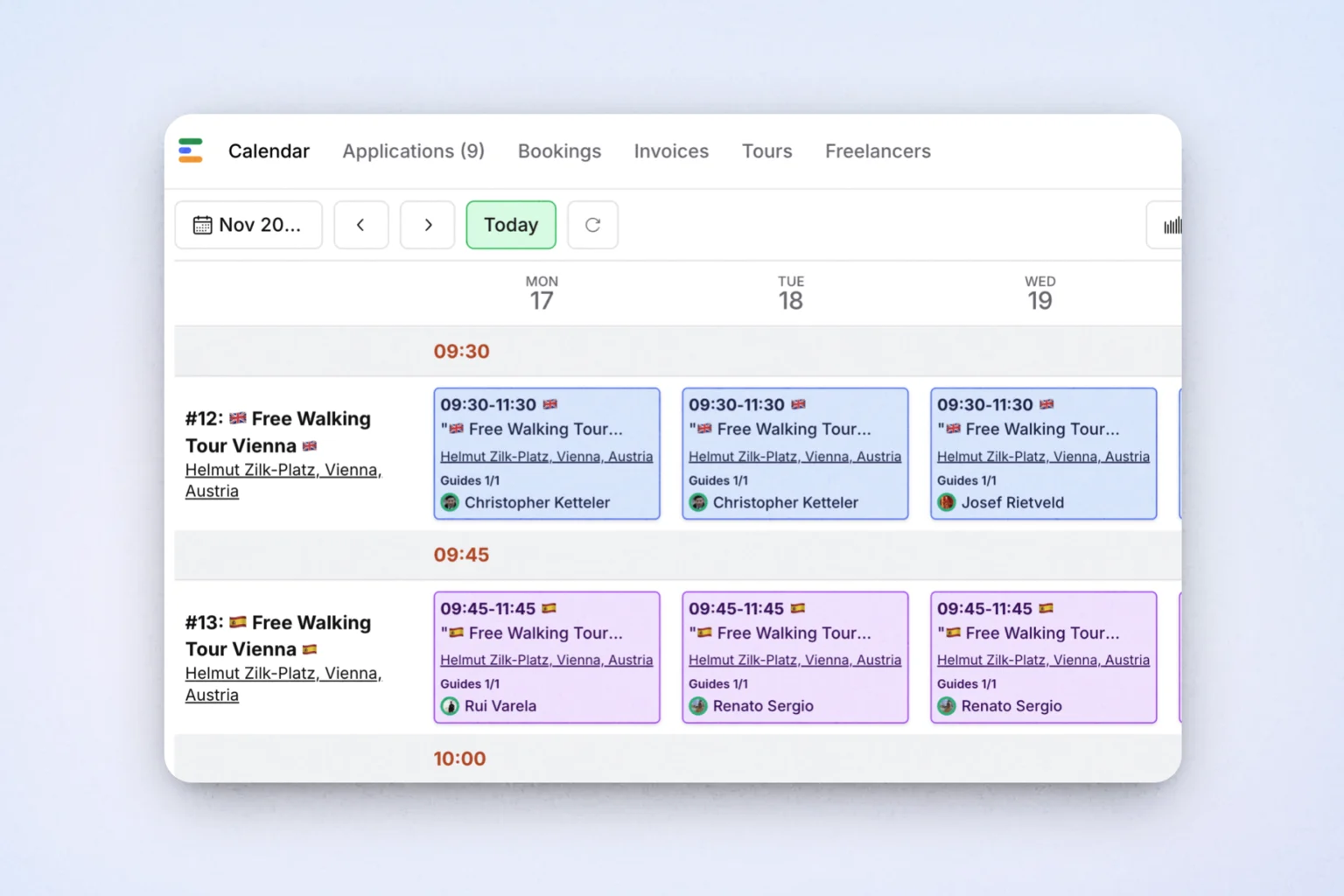
This update adds three things to EasyPlanning: files attached directly to tours, freelancer groups that control who can see and take a tour, and a cancellation policy on each tour template. All three replace work that many operators still handle outside their scheduling tool, in email threads, side spreadsheets and chat messages.
Below is what each change does, how to set it up, and what it does not do. Each section links to the matching page in the EasyPlanning user guide.
What's new in this update
Tour documents: attach files to tour templates and to individual departures.
Freelancer groups: limit a tour's open departures and candidates to one group of guides.
Cancellation policy: decide when freelancers may cancel an assignment themselves.
1. Attach Files to Tours
Guides need the right documents on the day: an entrance voucher, a guest list, a route map, meeting instructions. Until now, those usually travelled by email and had to be found again on a phone at the meeting point.
You can now attach files in two places:
- On the tour template, for documents that apply every time the tour runs, such as a standard route map or meeting instructions.
- On the individual departure, for files that belong to one date, such as that day's entrance voucher or guest list.
Once a guide's assignment is confirmed, they find the files in the Documents tab of the tour details, in the browser on their phone or computer. Alongside files, templates and departures have Public Notes, which freelancers can read, and Private Notes, which stay with your team.
Read more: Documents and public or private notes.
2. Freelancer Groups
As a team grows, not every guide should see every tour. You may want a core team for a partner's private groups, or a set of guides you have trained for a specialist route, without opening those departures to everyone.
Groups let you organise freelancers by whatever split matters to your operation, for example region, language or client:
- Open Freelancers → Groups and create a group.
- Add the relevant freelancers.
- On a tour template, select that Freelancer group. Its open departures and available candidates are then limited to the group's members. Leave it on All freelancers to keep the tour open to everyone.
Groups work alongside languages, roles and tour tags rather than replacing them. Group membership alone does not mean a guide meets every requirement of a tour, so still check language and skills when you staff it.
Read more: Freelancer groups and tour tags. For the wider picture of organising a freelance team, see our guide to managing freelance tour guides.
3. Cancellation Policy per Tour
Late cancellations are among the hardest problems in guide scheduling, especially in peak season. Each tour template now has a Cancellation policy with three options: no limit, a deadline (for example, at least 24 hours before the tour), or no self-service cancellation.
Freelancers see the rule in their tour details. If the policy allows it, they can cancel the assignment themselves; the staff position is freed, and a departure that was assigned manually reopens to applications. If the deadline has passed or self-service cancellation is off, the freelancer has to contact you directly, so a late change always reaches a person.
A cancellation does not guarantee that a replacement is assigned automatically. Review the departure in Calendar and choose a replacement or handle new applications. For the minutes after a late drop-out, our last-minute cancellation playbook covers triage, finding cover and briefing the replacement.
Read more: Cancellation rules and replacements.
Why These Three Together?
Each update keeps one more piece of tour operations inside the schedule itself: the documents a guide needs, the decision about who may take a tour, and the rule for backing out of one. When that information lives in the same place as the departure, fewer things depend on someone remembering to forward an email or update a side spreadsheet. If you are still coordinating guides that way, the signs your tour company has outgrown spreadsheets may be worth a read.
All three features are available in the company workspace of our tour guide scheduling software. Existing customers can use them today; open a tour template to add files, a freelancer group and a cancellation policy.
Try the new features
Start a 14-day free trial with no credit card to set up tour documents, freelancer groups and cancellation rules, or book a short demo to see them on a real schedule.